FusionAuth Theme Setup
Upload a demo's theme files to your FusionAuth instance
Each Demo in this repository comes with a set of FusionAuth theme templates to customize all aspects of the hosted FusionAuth pages.
The theme templates are located in named directories within /packages/fusionauth/. The name of the subdirectory corresponds to the name of each Next.js app.
Prerequisites
- Node 22.6.0 or higher
- FusionAuth CLI
To use CLI flags instead, the API key flag is -k and the host flag is -h.
Find the theme ID
During the setup process, the fa:setup created a new advanced theme in your FusionAuth dashboard. The theme does not contain the proper styles or templates. To get the files to FusionAuth for hosted pages, we need to the theme ID.
With your Docker container running, navigate to the Customization > Theme dashboard.
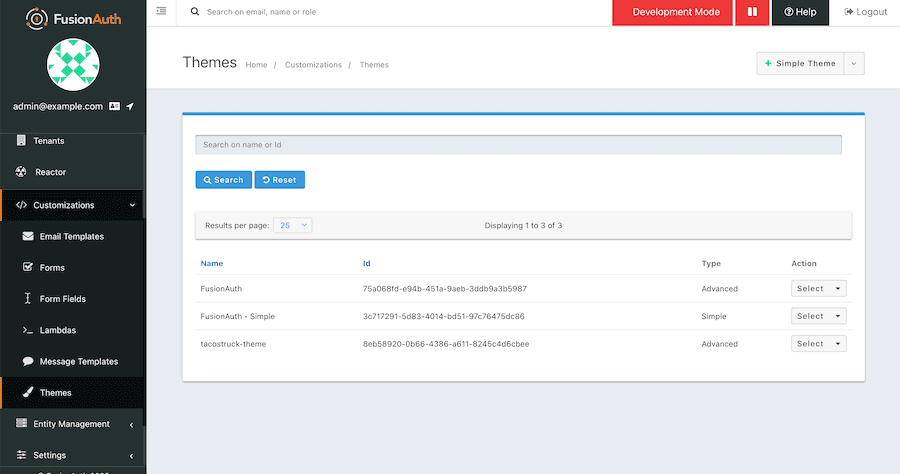
Each theme has a unique ID. For your demo, copy the ID that corresponds to the demo name.
Uploading the demo's theme files
The template files for each theme exist in /packages/fusionauth/<theme-name>. In your terminal, change directory into /packages/fusionauth and run the upload command changing out the following variables:
<theme-id>: Repace this with the ID from the admin from the previous section<tpl-directory>: The relative path to the files for the templates (e.g../tacostruck/tpl)<apikey>: The API key for your FusionAuth API (found in the admin or created during setup)<host>: The host for FusionAuth (for local workhttp://localhost:9011)
Once this runs, the various FusionAuth pages in your locally running app should show the proper theme styles.
This should be all you need to be up and running. The following sections detail doing more work on the themes.
Additional Details
Download
Note: If you are on a newer version or upgrade your FusionAuth Instance, make sure you either download the theme manually or update all the required messages.
Example:
Watching Changes and Rebuilding Themes
More details: https://github.com/FusionAuth/fusionauth-node-cli Make sure you update to the CORRECT theme directory!!! Note: You need to replace
<themeid>,<apikey>,<host>and<theme-name>with your own values.
This will require two steps, one for building using Tailwind and the other for uploading to FusionAuth.
Building CSS from Tailwind
See more: https://fusionauth.io/docs/customize/look-and-feel/tailwind
Run the below command to watch for changes and rebuild the theme:
Example:
Uploading to FusionAuth
Run this command in another terminal to automatically update the theme within FusionAuth Instance:
Example: